
First Time Setup
This walks through standing up a Cambium server on a Linux box you control, either a VPS or a machine on your own network. The commands below assume Ubuntu or Debian.
1. Put the server on the machine
Download a copy of the Python server and transfer it to your server. Place it at /srv/cambium, which is the path the rest of this page assumes.
The server needs Python 3.9 or later and nothing else. Check what you have:
python3 --version2. Give it its own user
Run Cambium as a dedicated account rather than as root or as yourself. It only ever needs to touch its own directory, and a service account keeps it that way. Make /srv/cambium that user's home, so anything it writes lands where you expect:
sudo useradd --system --home-dir /srv/cambium --shell /usr/sbin/nologin cambium
sudo chown -R cambium:cambium /srv/cambium
3. Configure it
Edit /srv/cambium/serverconfig.conf before the first boot. At minimum set the server name, the owner's handle and the port:
name: MyServer
owner: @mike
port: 8666
The file is plain key: value lines and anything else is treated as a comment, so annotate it freely. port is what the desktop client connects to. The owner handle is the account the server creates for itself on first boot, so set it now — it decides who ends up holding the keys.
4. Boot it once by hand
Before wiring up a service, start it manually so you can see what it prints:
sudo -u cambium python3 /srv/cambium/server.pyTwo things come out of this first boot that you need, and one of them you only get once.
A fresh server has no users and ships with no default password. On first boot with an empty user list it creates the account you named as owner and prints a random one-time password:
==============================================================
  First boot: created owner account @mike
  One-time password: ib1oXNaj_ccr9jmU
  Log in and change it immediately.
==============================================================
It also prints its TLS fingerprint. Give that to your team along with the address, because the first time each client connects it will ask them to confirm it. They can accept it at the prompt, or pin it up front with cambium trust --fingerprint <fp>.
Log in from a client to confirm it works, then change the password immediately from the account menu, or with cambium password @mike <newpassword>. Then stop the server with Ctrl-C.
5. Run it as a service
So it starts on boot and comes back if it falls over. Create /etc/systemd/system/cambium.service:
[Unit]
Description=Cambium Server
After=network-online.target
Wants=network-online.target

[Service]
Type=simple
User=cambium
Group=cambium
WorkingDirectory=/srv/cambium
ExecStart=/usr/bin/python3 /srv/cambium/server.py
Environment=PYTHONUNBUFFERED=1
Restart=on-failure
RestartSec=5

[Install]
WantedBy=multi-user.target
Then enable and start it:
sudo systemctl daemon-reload
sudo systemctl enable --now cambium
systemctl status cambium6. Open the port
Make sure your firewall, and your provider's, allow connections on the port you chose. If you are running ufw:
sudo ufw allow 8666/tcpA VPS usually has a second firewall in its control panel that is separate from anything running on the machine. If clients cannot reach the server but systemctl status cambium says it is running, that is the first place to look.
7. Make a project
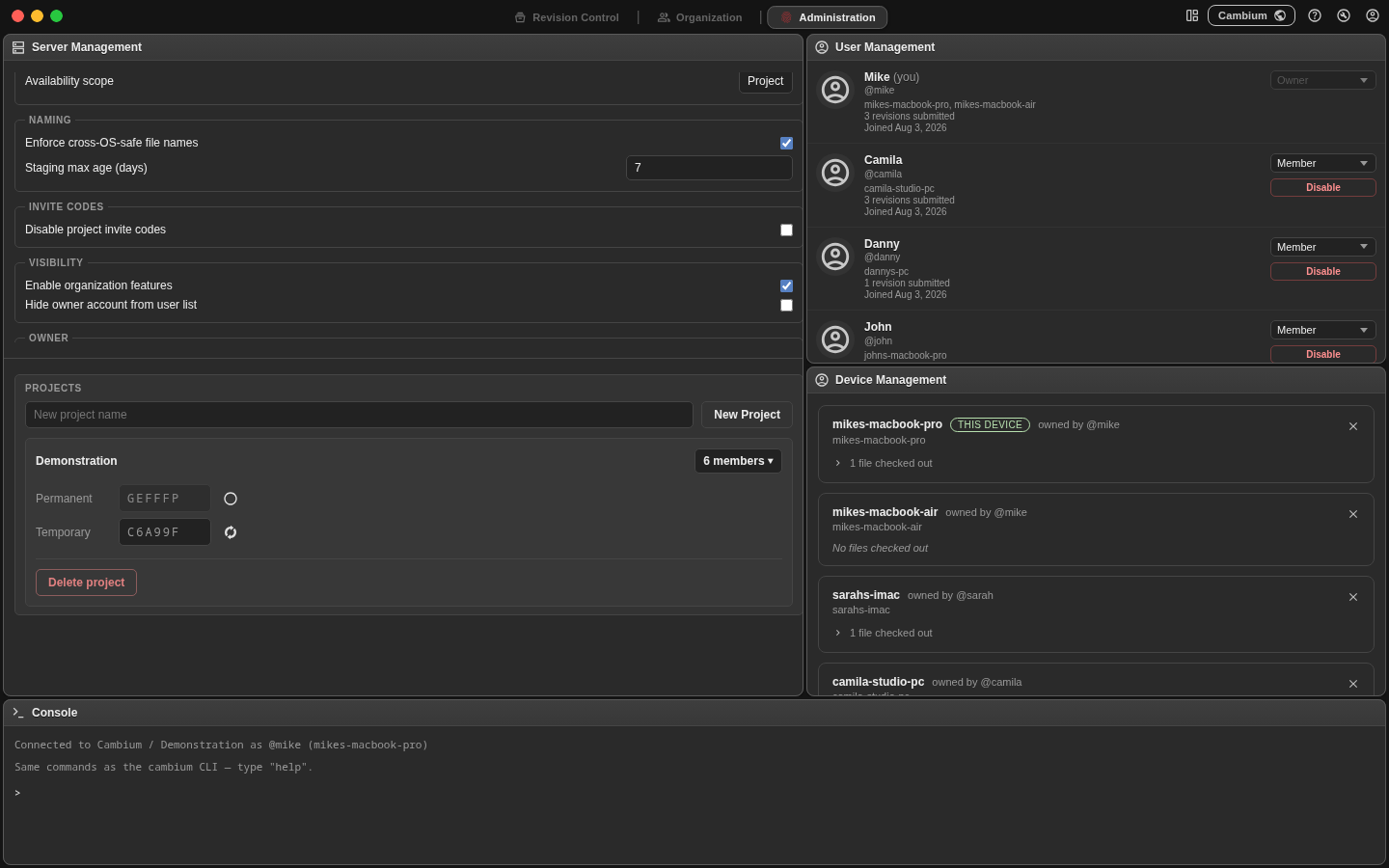
On the Administration page, Server Management has a project list. Create one, then either assign members directly or hand out an invite code. Each project has a permanent code you can switch on and off, and a single-use temporary code that is consumed by whoever joins with it. Members redeem a code from the connections window.
8. Add your team
User Management creates accounts and sets roles. Everyone starts as a member; promote the people who need the Administration page to admin. The owner's role cannot be changed, including by the owner.
From here, point everyone at Installing the Desktop Client.