
Using the Desktop Client
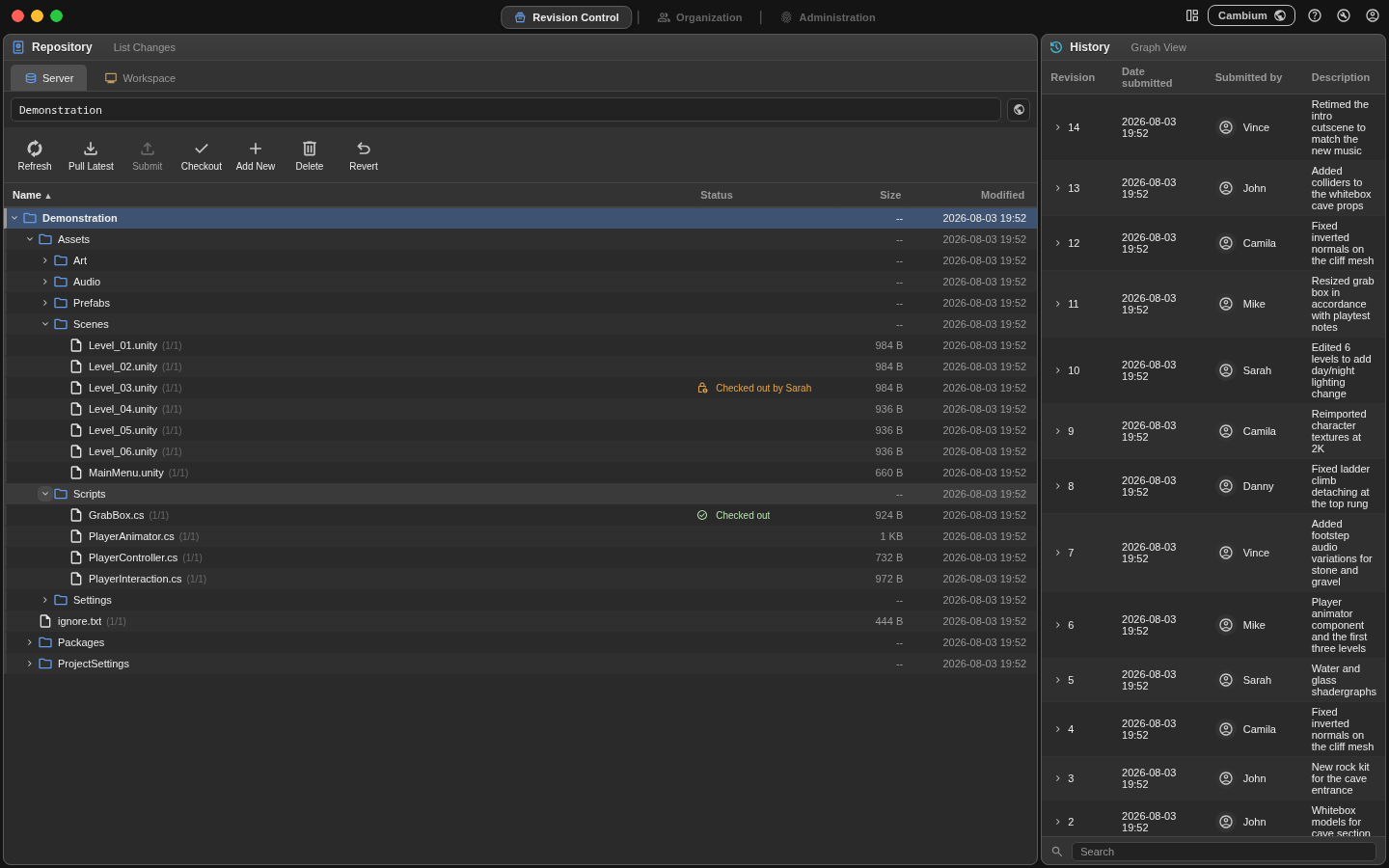
The Cambium desktop is a tiling workspace. The bar across the top holds the windows menu to close and open new tiles, your help and settings, and a button to switch workspaces. The application is split into different pages for each domain you are working in.
Pages
Which pages you see depends on the server and your role. Revision Control is always there. Organization appears when the server has organization features enabled, and Administration only if you are an admin or the owner. If a server leaves you with just one page, the tab strip hides itself.
| Page | What is on it |
|---|---|
| Revision Control | The Repository file tree, History, Console, and Device Management. |
| Organization | Team availability, meetings, the member list with statuses, and Device Management. |
| Administration | Server settings, projects, users and devices. |
Panels
Panels tile rather than float. Drag a panel by its edge and drop it on another panel's edge to split that space in two; drag the gutter between panels to resize. The mosaic button in the top bar lists the panels for the current page and toggles them.
The Repository panel
Two tabs sit at the top of it:
- Server — files as they presently exist on the server. Only live lock state and your own marked-for-delete rows overlay it.
- Workspace — files as they exist on disk, showing your local changes. Modified files, files you have not added, naming problems.
Below the tabs is the path bar (the project name on the Server tab, your workspace folder on the Workspace tab) and then the toolbar.
| Button | What it does |
|---|---|
| Refresh | Re-reads the server tree and rescans your workspace. |
| Pull Latest | Downloads the newest version of the selected files. Files land read-only. |
| Submit | Opens the changelist for what you have selected, so you can review and write a message. |
| Checkout | Takes an exclusive lock and makes the file writable. |
| Add New | Marks local-only files to be created on the server. Flips to Don't Add when the selection is already marked. |
| Delete | Marks files or folders for delete and removes the local copy. |
| Revert | Undoes a pending change — discards edits, un-marks adds and deletes, releases checkouts. |
Buttons grey out when they do not apply. A file someone else holds cannot be checked out or deleted, and the chip in the Status column tells you who has it.
File statuses
Every row carries a status. Click the chip and the app explains what it means and what to do about it.
| Status | Means | What to do |
|---|---|---|
| Checked out | You hold the lock, on this device. | Submit it, or revert it. |
| Marked for add | Staged in your changelist as new. | Submit, or un-mark. |
| Not added | Local only — the server has never heard of it. | Mark for add, then submit. |
| Marked for delete | Staged as a removal; the local copy is already gone. | Submit, or revert to restore it. |
| Outdated | Your copy is clean but the server has moved on. | Pull latest. |
| Modified | Content differs from your base and you hold no lock. | Check it out to keep working, or pull to discard. |
| Checked out by @… | Someone else holds the lock. | Wait, or ask an admin to force-unlock a stale one. |
| Checked out by you on … | Your account, a different device. | Release it from that device, or check it in remotely. |
| Naming issue | The name breaks a cross-OS rule. | Rename it in a way that no longer violates the rule specified. |
Files on the project's ignore list (build output, caches, local settings) carry no status at all and cannot be added by accident.
Working in the tree
Cambium's file tree attempts to work seamlessly as a file browser to let you navigate your project through it.
- Click to select, ⌘/Ctrl-click to add to the selection, shift-click for a range, ⌘/Ctrl-A for everything.
- Double-click a folder to open or close it; double-click a file to open it in whatever app your OS uses for it.
- Right-click for the same actions as the toolbar, plus Reveal in Finder/Explorer, Copy Path, and New Folder.
- Drag files in from Finder or Explorer to copy them into the workspace folder.
- A collapsed folder shows its contents' status, so nothing checked out or marked can hide inside a closed folder.
Submitting
List Changes in the Repository panel header reviews your whole changelist; the Submit button reviews just what you have selected. Either way you get the file list and a message box before anything is sent.
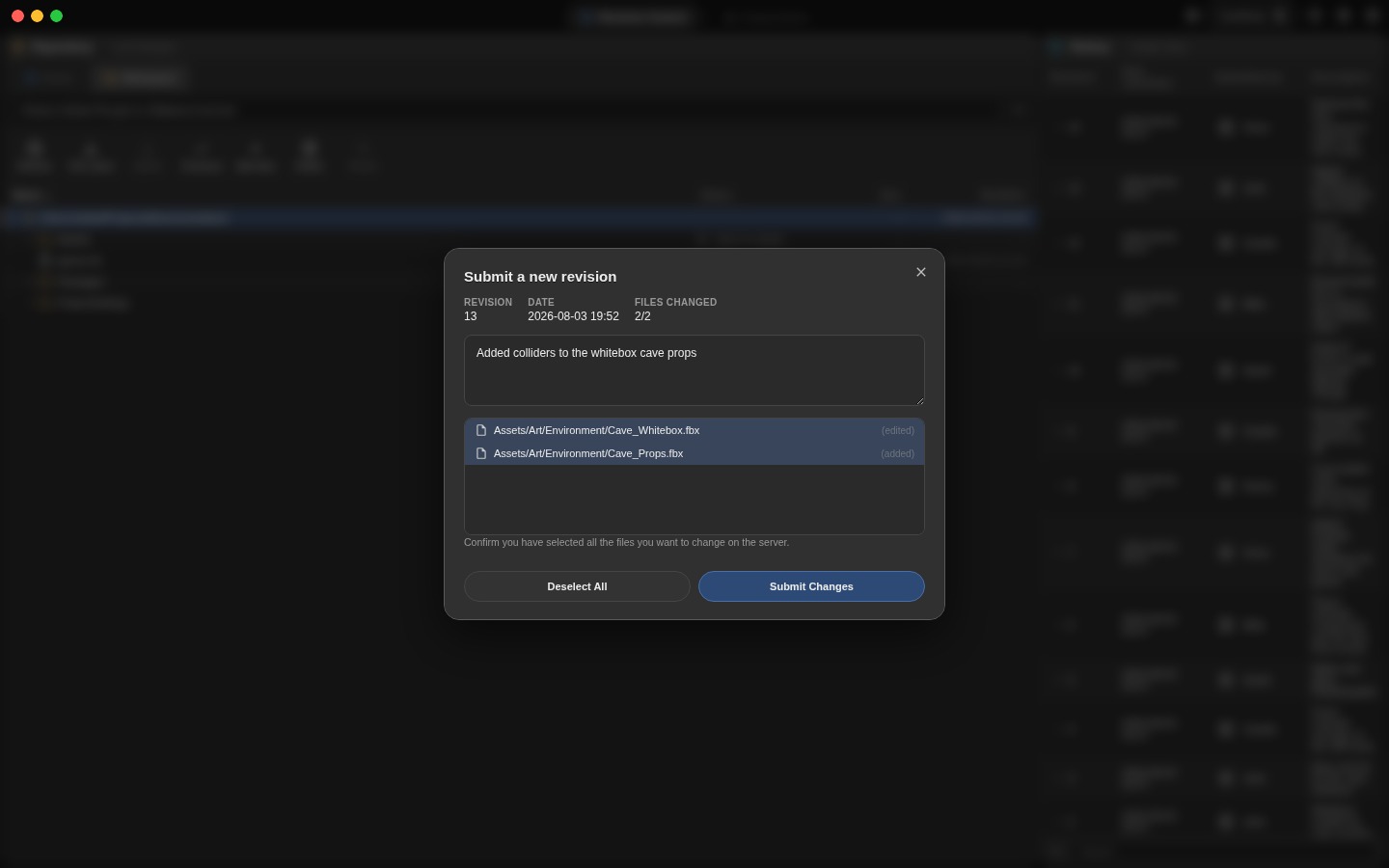
A submit is per file, not per changelist. Submit forty files where two are in conflict and the other thirty-eight land, with the two reported back to you and a reason for each failure.
History
The History panel lists revisions newest-first — number, date, who submitted it, and the message. Double-click a row to open the revision and see exactly which files it touched. From there you can roll a file back: that is recorded as a new revision reusing the old content, so the timeline stays linear and you can undo the undo.
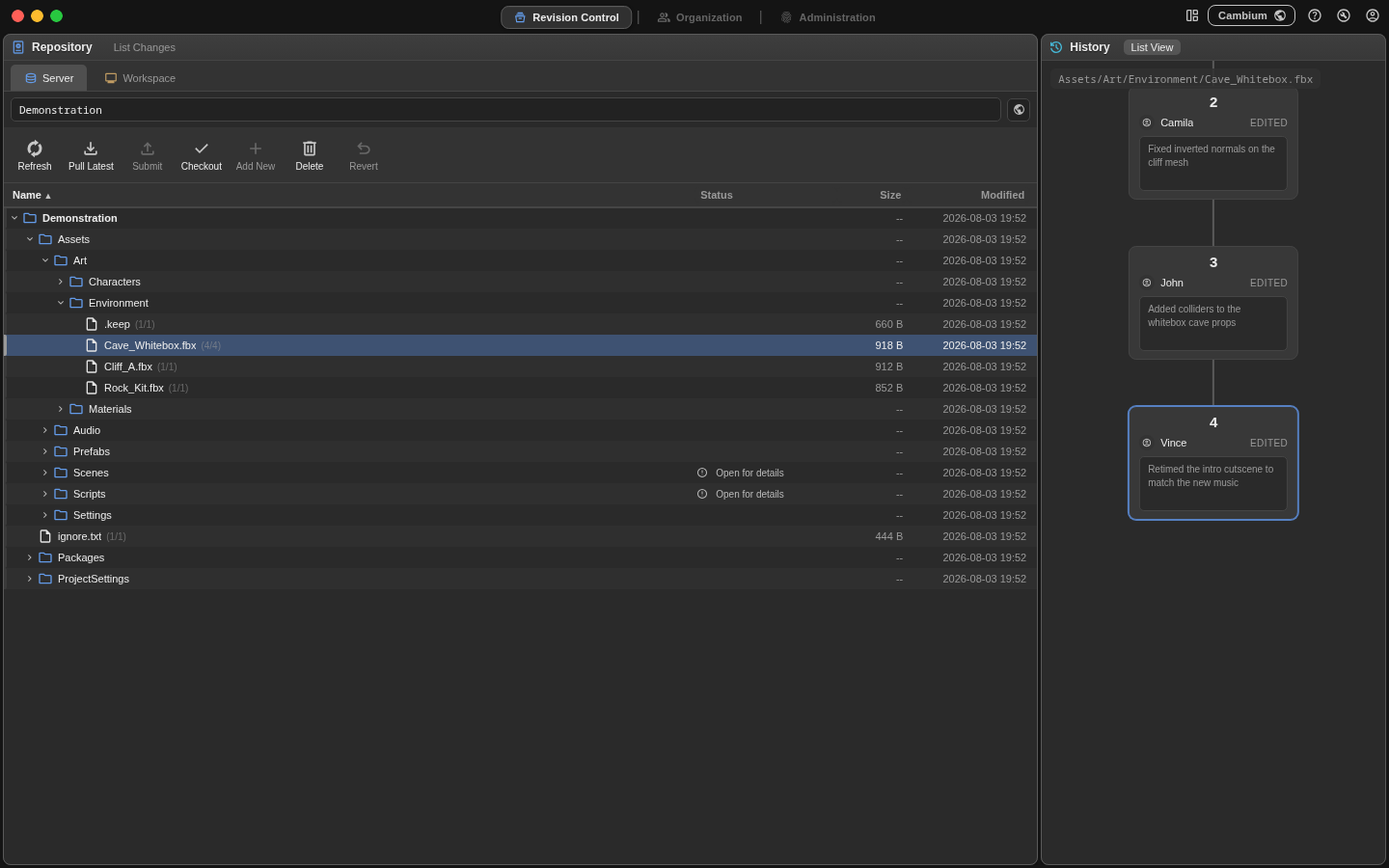
Graph View switches to a tree of revisions for the file you have selected. Here you can see the history of the file presented in a visual way. Each card is a distinct content state, the current revision is highlighted, and deleted or reverted revisions are dimmed. Revisions in Cambium are linear only, but this view presents identical states as the same card, so if you rollback a file you see the tree highlight an older card, rather than a new identical card being added below. This metaphor can help make it clear exactly what has happened to a file. Drag to pan and scroll to zoom.
Console
The Console panel runs the same verbs as the CLI, in-process. Type the verb without the cambium prefix. Everything on Using the CLI and Commands applies here.
Your devices
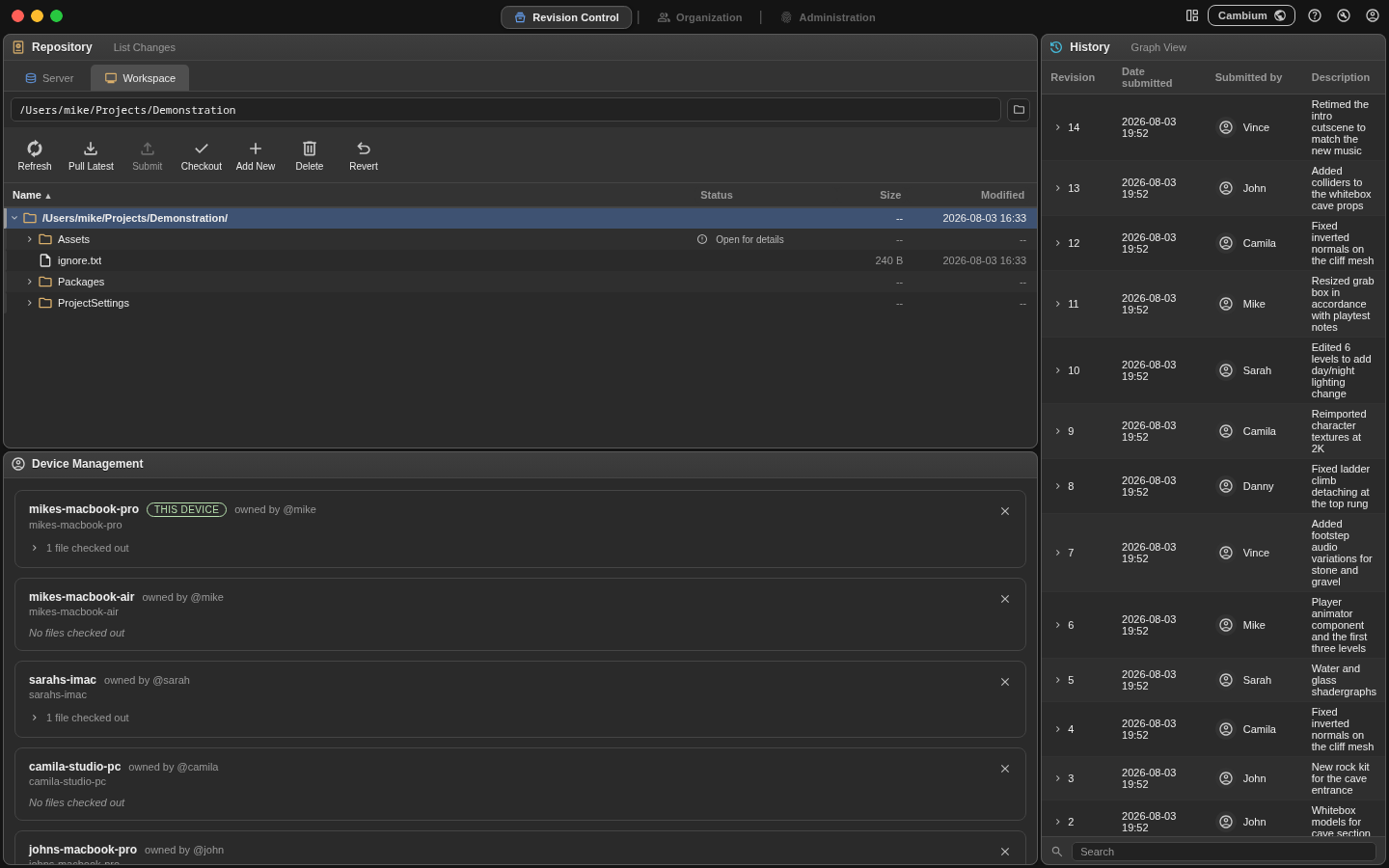
Each machine you log in from registers as a device, and locks belong to a (user, device) pair. The Device Management panel lists your devices and what each one has checked out. If you left a file checked out on your desktop and you are on your laptop, you can check it back in from here without walking to the other machine. Removing a device releases its locks and invalidates its session.
Settings
The cog in the top bar covers appearance and behaviour: Tab styling, whether server names show in the bar, timezone display for members, and whether the List Changes hint shimmers when you have pending work. The account button next to it handles your password, avatar and status.