
Using the Admin Panel
The Administration page shows up for admins and the owner. It has four panels: Server Management, User Management, Device Management and the Console.
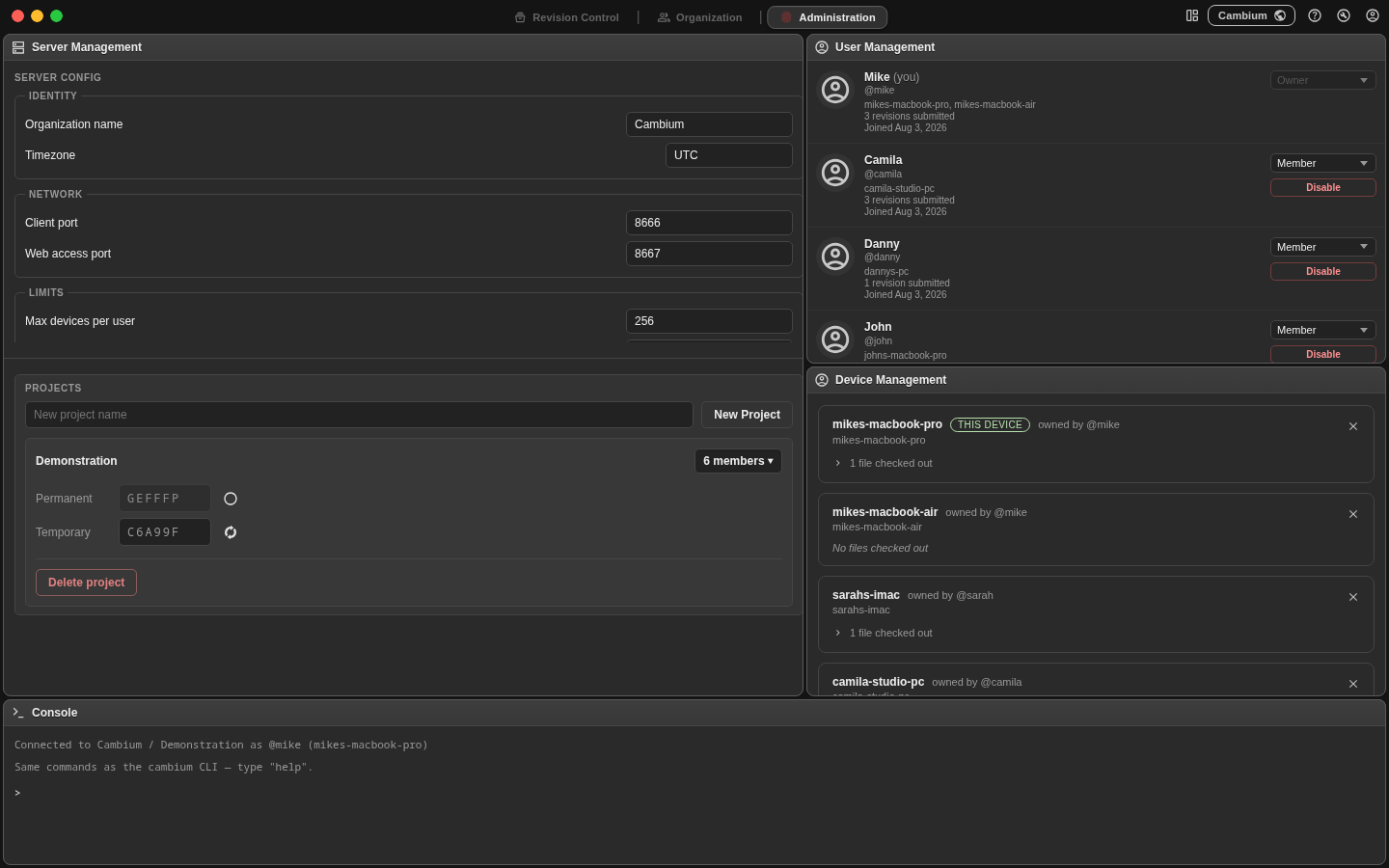
Server settings
The left of Server Management is an editor for serverconfig.conf. Saving writes the file and updates the running server, so most changes take effect immediately for every client that connects. No restart.
| Section | Settings |
|---|---|
| Identity | Organization name, timezone. The name is what shows next to the globe in everyone's menu bar. |
| Network | The client port, plus what the server is bound to and whether it is serving TLS. |
| Organization | Enable organization features, and whether they can also be reached from a browser. |
| Limits | Max devices per user, and the online window in seconds that decides who reads as online. |
| Scope | Who can see the members list and who can see availability. |
| Naming | Whether cross-OS-safe file names are enforced, whether a submit must carry a description, and how long staged uploads survive. |
| Invite codes | Turn project invite codes off entirely. |
| Server owner | Who the owner is, and whether to hide that account from the user list. |
| Connection backstops | The concurrent-connection ceiling and the two network timeouts. |
Projects and invite codes
Server Management also manages projects and the members within them: create one, delete one, and handle its codes. Each project has a permanent code you can switch on and off that lets anyone join the project using it so long as it is enabled. Temporary codes are single use and are consumed when someone registers them to join a project, and the server immediately issues a fresh one for the next person.
Users and roles
User Management lists every account with its role.
| Role | Can do |
|---|---|
| Member | Normal work: their own projects, their own devices. |
| Admin | Everything a member can, plus the Administration page, user management and force-unlock. |
| Owner | Everything. The role is fixed — it cannot be changed from here, including by the owner. |
Disabling a user drops their sessions and keeps the handle reserved; adding that handle again reinstates the account rather than creating a second one. You cannot disable the owner or yourself.
Devices
Device Management lists registered devices and what each one currently holds. Removing a device releases its locks and invalidates its session, which is the clean fix for a lost laptop that is holding the rig file hostage.
Backups
Below the project list, Server Management has a Backups box listing every backup on the server. Each one is a single file holding a project's complete history: its revisions, its file content, its member list, and a copy of the server's configuration at the time it was taken.
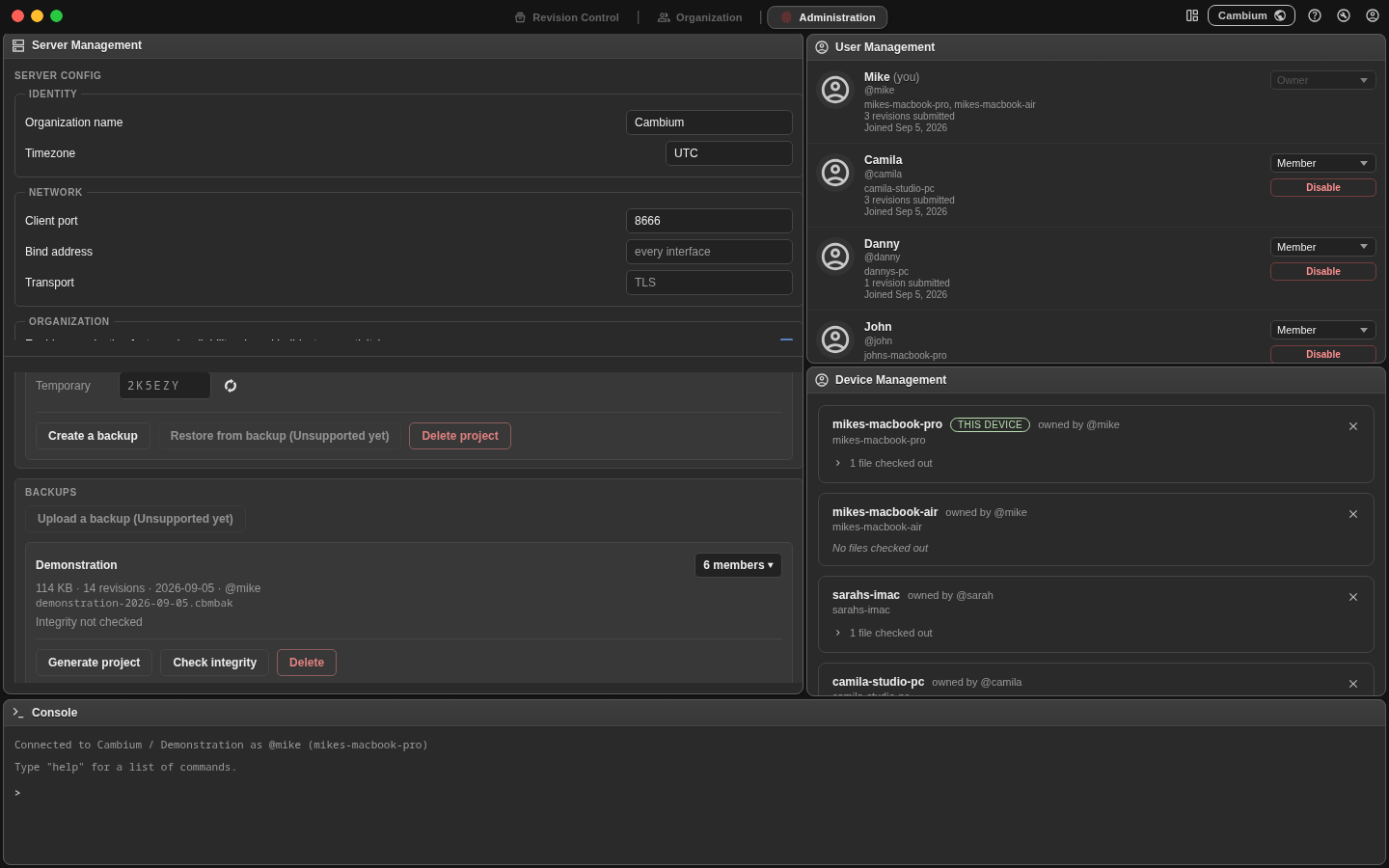
Create a backup on a project card writes a new one. The card in the Backups box then shows its size, how many revisions it holds, when it was taken and who took it; the member count opens the list of handles it remembers.
Check integrity reads the whole file and compares every checksum against the ones recorded inside it. The result is kept and shown on the card, so it is asked for rather than done on every visit — a large backup takes a while to read. A backup that has never been checked says so.
Generate project builds a new project from a backup. It is always a new project and never touches an existing one, so it is safe to run against a project that is still in use. It takes the backup's project name, with a number appended if that name is taken. Everyone on the backup's member list who still has an account here is added, and anyone who does not is named in the result so you can invite them. Nothing arrives checked out.
Delete removes the file from the server.
A file that is damaged or is not a Cambium backup is marked in red on its card and cannot be generated from or checked. Delete still works, which is how you get rid of it.
Backups live in Database/Backups beside server.py. They are ordinary files: copy them off the machine with scp or rsync the way you would any other, and keep that copy somewhere the server is not.
rsync -av cambium@your-server:/srv/cambium/Database/Backups/ ./cambium-backups/The same operations are on the CLI — list them, take one, build a project from one:
cambium backups
cambium backupproject alpha
cambium addproject "alpha restored" alpha-2026-09-05.cbmbak
Force-unlocking
A stale lock that its holder cannot release (wrong machine, someone on leave) comes off with a force unlock, from the file tree's context menu or the CLI:
cambium unlock -f //Assets/player.fbxThe -f is mandatory, without it the command refuses. The holder's client notices and tells them it happened, rather than letting them find out at submit time.
Shutting the server down
Server Management has a Shutdown button. It stops the process cleanly and that is all it does. The server will not come back on its own unless you have a restart policy or a service unit that brings it back. It is a way to cycle the process or to apply a port change.